Customer guide · v1.21 · Written by Andrew C. @ Gigafy

Why your speed test isn't matching your plan.

You bought fast internet. Your phone says it's slow. Most of the time, the cause is something you can fix yourself — and we'd rather help you understand what's going on than have you wait on a callout. Wi-Fi is just radio waves bouncing around your house; and walls, distance, your neighbours, and the device in your hand all chip away at the speed. This guide explains it in plain English, points out what's normal, and tells you when it's worth giving us a call.

You're paying for a 1 Gbps connection. Your phone reports 240 Mbps. That gap is almost always closeable — most of the time on the wireless side of the wall, occasionally on ours. This guide shows you what's normal for your gear, what isn't, and how to tell the two apart before you pick up the phone. We'd rather you find the easy stuff yourself; we're here for the rest.

You're paying for a 1 Gbps service. Your phone iperfs 240 Mbps. The binding constraints are usually L1/L2 wireless — PHY rate, SNR, MIMO chain count, MCS rate-fall, contention with co-channel BSSes, MAC overhead — but not always. This guide walks the stack from L1 up so you can localise the problem yourself before opening a ticket. Where it's a Gigafy / RSP issue, the symptoms are listed in section 12; where it's RF-domain, the diagnostic ladder is in section 10.

Our part of your internet ends at the wall. After that, it's physics.

Your Gigafy connection ends at the router. Everything past that is physics.

We get your plan speed all the way to the box on your wall. From there, the data either travels through a cable (predictable, no fuss) or through the air as Wi-Fi (shared with everyone, weakened by walls, shorter-range than people expect). The wireless part is where most surprises live — and it's the easiest place to investigate first, often without anyone needing to come out.

We deliver your plan speed — whether that's 100/100, 500/500, or 1000/250 — to the wall. From there it travels over either Ethernet (predictable, full-duplex, deterministic) or Wi-Fi (shared, half-duplex, time-variant). The wireless segment is where the long tail of "my internet feels slow" tickets sit — and where you can self-diagnose the most before bringing us in.

We deliver your provisioned profile — symmetric across most of the tier range, asymmetric only at the top — to the wall plate or your CPE WAN port. From there it traverses either copper Ethernet (full-duplex, deterministic latency, predictable PHY) or 802.11 wireless (half-duplex, contention-based, time-variant SNR with statistical retransmits). The long tail of "my internet is slow" reports is dominated by the L1/L2 wireless segment, not the L3+ access network — but the upstream isn't immune, and the symptoms that point to our side are listed in section 12.

Three things mostly decide how fast your Wi-Fi feels:

Three factors shape virtually every Wi-Fi speed test result you'll ever see, in roughly this order of impact:

// 01

Your client device

Your phone or laptop has a built-in speed limit. A flashy 2024 phone and a $30 smart plug from 2018 connected to the same Wi-Fi will get totally different speeds — because their Wi-Fi chips are different. The Wi-Fi network doesn't slow down. The chip in the device is just less capable.

The phone, laptop, or tablet you're testing on has a fixed maximum speed determined by its Wi-Fi chipset — its generation, antenna count (MIMO), and supported channel widths. A 2024 flagship phone and a 2018 IoT camera connected to the exact same router will see wildly different speeds.

The client's PHY ceiling is a function of (generation × supported MCS) × spatial stream count × negotiated channel width × guard interval. A 2×2 802.11ax/HE160 client tops out at ~2.4 Gbps PHY; a 1×1 802.11n/HT20 IoT module tops out at 72 Mbps. The router cannot deliver a rate higher than min(AP capability, client capability), and most of your devices are the limit, not us.

// 02

Distance & obstacles

Wi-Fi gets weaker the further you go, and walls (especially brick) chew it up. The further away you are, the more carefully (read: slower) the router has to talk to make sure you hear it. Two rooms and a kitchen away? Half the speed, easily.

Wi-Fi signal strength drops off exponentially. Two brick walls and a kitchen between you and the router can easily halve your throughput. Worse, the router has to throttle to a slower, more robust modulation to keep the link alive — so you lose bandwidth twice over.

Free-space path loss is 20·log₁₀(d), but real homes also stack additional attenuation per material — drywall ~3 dB, brick ~6–8 dB, foil-backed insulation 10–20+ dB, mirrors and concrete walls catastrophic. As RSSI degrades, the rate-control algorithm steps the link down through MCS indices to maintain a tolerable BER. You take the throughput hit twice: less spectral efficiency per symbol, plus more retransmits per failed frame.

// 03

Shared spectrum & contention

Wi-Fi channels are a limited number of "meeting rooms" — and each channel is a room you often share with your neighbours, or even the apartment across the road. Inside each room only one device can talk at a time; everyone else has to listen and wait their turn. Your phone, your TV, your neighbour's smart fridge — they're all queueing for the same airtime. The more gear in the room, the more waiting between turns, the slower it feels. (More on this in section 3.)

Wi-Fi is a walkie-talkie, not a phone. Every device on your channel — including your neighbours' — must take turns transmitting. A single noisy IoT device, or a flatmate in the next unit on the same channel, eats into your share of airtime.

802.11 uses CSMA/CA: every transmitter sniffs the medium, waits for it to clear, waits an arbitrary inter-frame space (DIFS), then runs a randomised backoff before transmitting. Co-channel BSSes share a single airtime budget. A loud, slow client (legacy 802.11g IoT at 6 Mbps) holds the medium for far longer per byte than a Wi-Fi 6 client at 1 Gbps — its airtime cost is disproportionate. Add a neighbour's AP on the same channel and you split the cake again.

Plug your laptop directly into the router with a cable. If that speed test hits the speed you're paying for, our side is fine. Anything missing after that is happening between your router and your device.
If your wired speed test (Ethernet straight from the router) hits your plan, the Gigafy side is fine. Anything missing after that is happening between the antenna and the device in your hand.

Good news: most Wi-Fi problems can be fixed. You just need to know what's actually slowing you down. The rest of this guide explains it simply and gives you steps to try.

That doesn't mean you can't fix it — most home Wi-Fi performance problems are entirely solvable once you understand what's actually limiting you. The rest of this guide walks through the why, then gives you a concrete playbook.

None of this is unfixable — it just demands diagnosis before remediation. The rest of this guide unpacks each layer (PHY, MAC, channel planning, RF propagation, client capability matching) and ends with a triage playbook. Where convenient, the controls let you stress-test scenarios against your own gear.
<

Wi-Fi gets weaker the further you go — in steps, not gradually.

Signal strength falls off a cliff. Then another cliff.

Wi-Fi gets weaker the further you go from the router, but it doesn't slow down smoothly. It drops in noticeable steps, falling back to slower, more robust speeds whenever the signal can't keep up. Each step is roughly half the speed of the one before it — so by the time you're at the back of the house, you might be running at a tenth of what you'd see in the same room.

Free-space radio attenuation follows an inverse-square law — double the distance, quarter the signal power. Add building materials and the curve gets a lot steeper. The result is that throughput doesn't decline gracefully with distance — it steps down in chunks as the radios drop to lower MCS levels to keep the link alive.

LIVE Throughput vs distance · drag to explore
Walking through a typical 3-bedroom unit 3-bedroom apartment · router fixed in lounge You're in: the lounge
LOUNGE KITCHEN HALLWAY BED 1 BED 2 BATH ROUTER
1200 900 600 300 0 Mbps throughput 0m 5m 10m 15m 20m 25m+ Distance from router (with typical wall obstruction)
At 5m
1,800 Mbps
Active modulation
1024-QAM
Signal strength (RSSI)
-52 dBm
Status
Strong signal · top speed

What walls actually cost you

These are typical attenuation values for common Australian residential building materials at 5 GHz. They're not exact — they vary with material density, moisture content, and the angle of incidence — but the relative ordering holds.

MaterialTypical loss (5 GHz)What it means in practice
Plasterboard wall (one)2–3 dBBarely matters
Solid timber door3–6 dBWorth working around if avoidable
Brick (single skin)6–10 dBWill drop you a modulation step
Reinforced concrete15–25 dBOften a hard signal block — needs an AP behind it
Tiled bathroom (incl. mirror)15–30 dBBathrooms are notorious dead zones
Foil-backed insulation30+ dBEffectively a Faraday wall
Window (double-glazed, low-E coated)10–25 dBModern energy-efficient windows kill outdoor signal

Each 3 dB roughly halves the received signal power. So crossing a single brick wall (~9 dB) means your signal arrives at about ⅛ of its original strength. That alone is usually enough to drop you from 1024-QAM to 256-QAM — a 20% throughput hit.

Wi-Fi is a meeting room — and everyone's invited.

Wi-Fi is half-duplex. Everyone takes turns. Including your neighbours.

Picture a meeting room. Two people are chatting — one talks, the other listens, then they swap. It works fine. Now two more people walk in and want to talk too. Everyone still has to take turns, so each person gets less time on the floor. Add someone who speaks very slowly and the whole room waits on them. That's Wi-Fi in an apartment block: your phone, your TV, the neighbour's smart fridge, the doorbell next door, and a couple of other routers — all sharing the same limited number of meeting-rooms, all taking turns.

Ethernet has separate transmit and receive wires — both ends can talk simultaneously without conflict. Wi-Fi has one shared radio channel. Every device on it must wait for silence before transmitting, then transmit, then wait again. The protocol that orchestrates this is called CSMA/CA — Carrier Sense Multiple Access with Collision Avoidance. Think of it as the meeting-room etiquette every Wi-Fi device follows automatically.

802.11 is fundamentally a half-duplex, contention-based MAC. The CSMA/CA protocol runs as: sense the medium → if busy, defer; if idle, wait DIFS (~34 µs) → run a randomised backoff in slot times to avoid collisions with peers that were also waiting → transmit a frame → wait for ACK after SIFS (~16 µs). The protocol is reasonably efficient under light load (efficiency ≈ 65–75% MAC layer) but degrades sharply with frame collisions, hidden nodes, and rate diversity.

Your router handles all the turn-taking automatically — you don't have to think about it. But it's why dense apartment blocks can feel slow even on great connections: there are just too many devices in the same meeting room, and someone is always speaking.

It works surprisingly well — but it's the reason your apparent Wi-Fi speed plummets in dense apartment blocks. Every neighbouring router on the same channel competes for the same airtime your devices need, and slow devices (older IoT gear, 1×1 phones, devices at the edge of range) consume disproportionate amounts of it.

The protocol is robust but not free. Per-frame overhead (PHY preamble, MAC header, FCS, ACK turnaround) eats ~30% of theoretical PHY at best; collisions and retries push that further. The killer is rate diversity: a 6 Mbps legacy IoT client takes 100× longer to send a frame than a 600 Mbps modern client, but the medium is held just the same. One slow client can dominate the channel for orders of magnitude more airtime than its data warrants. This is why "kicking the smart bulbs onto 2.4 only" is such a frequent piece of advice — segregate the slow stuff so it can't hold up the fast stuff.

Sharing the airwaves · everyone takes turnsCSMA/CA timeline · what's actually happening on the channel
ROUTER Phone Laptop Smart TV Smart bulb

Your devices take turns talking to the router — only one can speak at a time on the same channel. Watch each one ripple on its turn. Add more devices to the room and everyone gets less time to speak.

Scene 1 · CSMA/CA airtime contention · multiple BSSes in one channel Currently speaking: YOU
SHARED CHANNEL YOUR AP NEIGHBOUR'S AP YOU 1 MB · 0.3s DATA → NEIGHBOUR 1 MB · 0.3s ← DATA IoT cam 1 MB · 1.3s slow speaker d a t a . . .
You + your AP Neighbour + their AP IoT camera (slow speaker)

Two APs and three clients all on the same channel. Only one can transmit at a time. The slow IoT device steals more airtime per byte than the others — that's why "kicking the smart bulbs onto 2.4 GHz only" is such a common piece of advice.

Your data
Other client / neighbour
ACK
Random backoff (silence)

Even with the channel "all to yourself", you spend a substantial fraction of every second on overhead: management frames, contention windows, ACKs, and the half-duplex turnaround between transmit and receive. This is why the rule of thumb for Wi-Fi throughput is ~70% of PHY rate.

Scene 2 · The hidden-node collision
Two clients, one AP — and a wall in the wrong place Hidden-node collision · clients in AP range, out of each other's range Right now: A transmits
AP CLIENT A (inside) CLIENT B (outside the door) A sees AP B sees AP through the door A and B can't hear each other ⚡ COLLISION No ACK received → both clients must retransmit

Both clients can hear the AP fine. Neither can hear the other through the wall. They both think the channel is clear, both transmit at the same time, the AP receives two voices at once — and neither packet survives. Then they both have to retry.

The hidden-node problem

Two clients can both be in range of your router but out of range of each other. They listen for silence, hear silence, and transmit at the same time. Their signals collide at the router and both packets are lost. The router has to wait for retries.

This is one of the unusual cases where moving devices closer together can actually help. It's also one of the things Wi-Fi 6 fixes — the router schedules clients explicitly rather than letting them race for airtime.

Why one slow device slows down everyone

Back to the meeting room. Imagine someone in the corner who only speaks very slowly — they need a long time to finish each sentence. While they're talking, no one else can. They take five minutes to say what a normal speaker would say in ten seconds, and the whole room waits. Wi-Fi works the same way: a really old smart bulb or cheap IP camera at the back of the house takes a long time to send each tiny bit of data, and the rest of your gear waits its turn the whole time.

Stick the chatty old gadgets on a separate 2.4 GHz-only Wi-Fi (most routers let you), so they can't hold up your phone and TV.

Wi-Fi is fair by airtime, not by data. If a 1×1 IoT camera at the edge of your house needs to send 1 MB at MCS 0 (6 Mbps), it occupies the channel for ~1.3 seconds. During that 1.3 seconds, your iPhone next to the router — capable of pushing the same 1 MB in 5 milliseconds — has to wait. The slow client effectively steals airtime from every fast client.

Get rid of, isolate, or upgrade ancient IoT devices on your main network. Many quality routers let you put IoT gear on a separate 2.4 GHz-only SSID with rate limits, keeping them out of the way of your real traffic.

Your phone has a hard ceiling. The router can't lift it.

Wi-Fi is a negotiation between two radios. They settle on the highest configuration they both support — channel width, MIMO streams, modulation — and that's the speed you get. The bigger, more expensive radio is almost never the limit.

Phones, tablets and battery-powered devices are stuck at 2×2 MIMO for a deeply practical reason: every additional radio chain costs power, and battery life beats peak speed every time in consumer product decisions. Even iPhone 17 and the latest Pixel ship 2×2. So when you connect a 2024 flagship phone to a 4×4 router advertised as "11 Gbps", you're using half the router's antennas. The other half don't go to waste — they're used for diversity gain and beamforming, which is genuinely useful — but the throughput ceiling is set by your phone, not the router.

Buying a faster router won't speed up your phone. Buying one with better range, more antennas (4×4) and 6 GHz support will improve where your phone gets its speed — but not the peak number.

What real devices actually do

Below are typical Wi-Fi specs for common consumer hardware. PHY caps assume the most favourable channel width the device supports.

Device classWi-Fi genMIMOMax channelPHY cap
iPhone 16 / 17, Pixel 9Wi-Fi 72×2160 MHz2,882 Mbps
iPhone 14/15, Galaxy S22+Wi-Fi 6E2×2160 MHz2,402 Mbps
iPhone 11–13, mid-tier laptopsWi-Fi 62×280 MHz1,201 Mbps
iPhone X/8/SE, older MacsWi-Fi 52×280 MHz867 Mbps
Budget tablet / ChromebookWi-Fi 5/61×180 MHz433–600 Mbps
Smart TV, Apple TV 4KWi-Fi 62×280 MHz1,201 Mbps
Smart bulb, plug, doorbellWi-Fi 41×120 MHz72 Mbps
Cheap IP cameraWi-Fi 41×120 MHz, 2.4 GHz only72 Mbps
Desktop PC w/ 4×4 adapterWi-Fi 6E/74×4160–320 MHz4,800–11,500 Mbps

Note: a 1×1 IoT device on a 20 MHz channel — your typical smart bulb — caps out at around 72 Mbps PHY no matter what you plug it into. Tens of these on your network is fine for control traffic, but they collectively eat airtime that your phone could be using.

Dive deeper · finding your device's PHY rate

Windows: Right-click the Wi-Fi icon → Network & Internet settings → Properties → look for "Link speed (Receive/Transmit)". Or run netsh wlan show interfaces in a terminal.

macOS: Hold the Option key and click the Wi-Fi menu icon — the "Tx Rate" line is your current PHY rate.

Android: Install "WiFiAnalyzer (open-source)" from Play Store — it shows current link rate and a lot more.

iOS: Apple deliberately doesn't expose this. Use your router's admin interface instead, where every connected device's negotiated PHY is listed.

Router-side (best): The most accurate view of every device on your network is your router's client list. Most modern routers show TX/RX PHY for every connected client in real time.

Reported PHY is usually a peak figure. The actual rate fluctuates symbol-by-symbol. If your link rate looks generous but speed tests are slow, the radio is probably stepping down to lower MCS levels under load — best confirmed by watching PHY during a sustained transfer.

Sections 05–09 · Geek zone

Want to go under the covers to understand how wireless works? Click below to dive in, or skip down to the simple solutions.

↓ Skip to the simple solutions

What speed should you actually be seeing?

Pick your Wi-Fi generation and roughly how strong your signal is. The tool shows the realistic speed you'd actually see in a speed test — after Wi-Fi pays its overhead.

Pick the gear you have and roughly how far you are from the router. The tool calculates your theoretical PHY rate (the raw radio link speed your devices report) and the realistic throughput you'll see in a speed test, after Wi-Fi's protocol overhead is paid.

LIVE Wi-Fi speed estimator · pick your gearThroughput Estimator · 2×2 client baseline

Gigafy CPE on this generation: hAP ax², hAP ax S

Showing the typical case: a 2-antenna phone-style device on a wide channel. Pick your Wi-Fi generation and signal quality above to see the impact.

Excellent: same room, line of sight. Good: next room, one wall. Fair: across the house, two walls. Poor: opposite end, multiple obstacles.

Estimated throughput
1,400 Mbps download
0 2,402 PHY max
PHY rate
2,000 Mbps
Modulation
1024-QAM
Spatial streams
2
MAC efficiency
~70%

With clean spectrum and no contention, you can expect 60–80% of the PHY rate at the application layer. Real-world numbers are usually lower if neighbours are on the same channel.

Dive deeper · how this calculation works

The PHY rate is the raw bits-per-second your radio chipset and the access point have negotiated. It depends on three things: how wide a slice of spectrum you're using (channel width), how many parallel data streams you can run simultaneously (MIMO), and how aggressively each symbol is modulated (the MCS index, which steps down as signal quality degrades).

Throughput at the application layer — what a speed test actually measures — is always lower because Wi-Fi has to pay protocol overhead: management frames sent at the slowest data rate so far-away clients can hear them, contention windows where everyone waits to avoid collisions, half-duplex turnaround between transmit and receive, ACKs for every data frame, and TCP/IP headers. A clean link with no neighbours typically lands at 65–80% of PHY.

For a 2×2 client (which is virtually every phone, tablet and laptop) on a Wi-Fi 6 router with a 160 MHz channel, that's a PHY ceiling of 2,402 Mbps and a practical cap around 1,800 Mbps. Most customers see 800–1,400 Mbps in real conditions.

The boxes we've put on people's walls — and what each one can actually do.

Every Gigafy CPE we've shipped, lined up against each other.

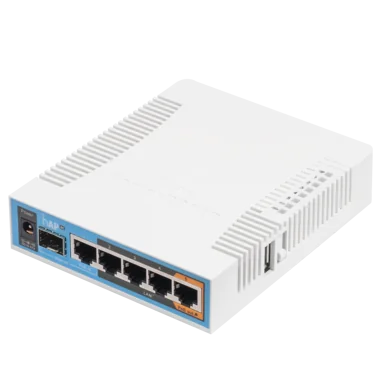
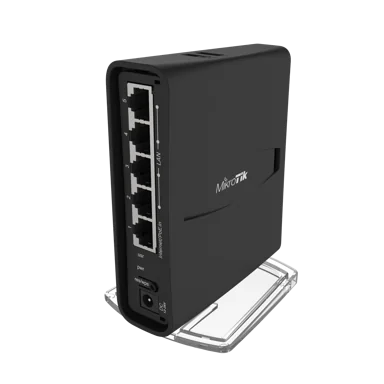
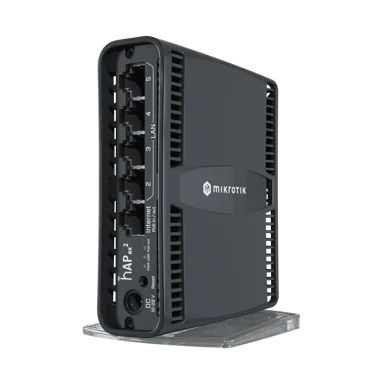
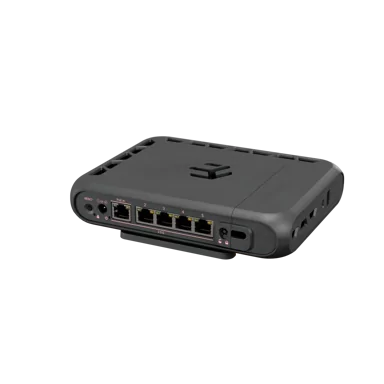
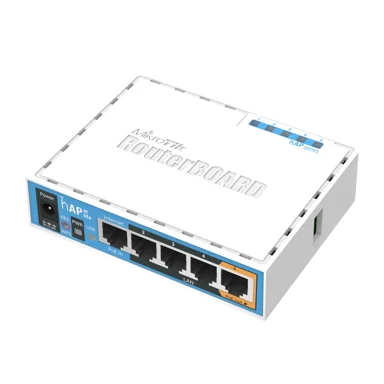
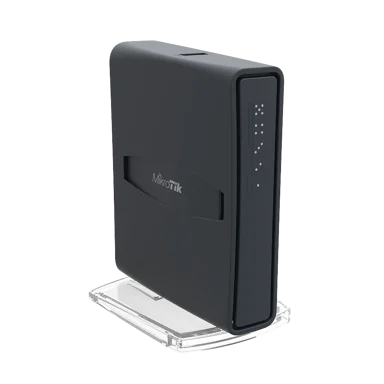
You probably don't know your router by its model number. You know it as "the white one we got when we signed up" or "the black one with the antennas". Click through the lineup below — find the one that looks like yours, and you'll see exactly what it can (and can't) do. The two on the right marked "Soon" are pre-release units we're evaluating, not yet on anyone's wall.

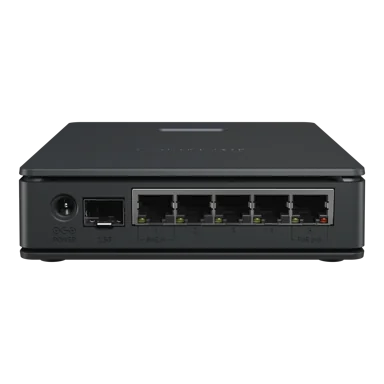
Customers rarely know their router by its model name. They know it by shape, colour, and how many ports it has. Below is every CPE Gigafy has rolled out, plus the two pre-release Wi-Fi 7 units we're currently evaluating — flip between them by appearance, then read what each one can actually deliver.

Six MikroTik hAP variants have been our standard CPE across different rollout waves, with two more (hAP be lite, hAP be3) under pre-deployment evaluation. Each is a deliberate balance of cost, RF performance, and feature set for the conditions of its time. Specs below reflect achievable throughput under typical home conditions, not vendor headline numbers.

MikroTik hAP ac lite
hAP ac lite
Wi-Fi 5 · 1×1
MikroTik hAP ac lite TC
hAP ac lite TC
Wi-Fi 5 · 1×1
MikroTik hAP ac
hAP ac
Wi-Fi 5 · 3×3
MikroTik hAP ac²
hAP ac²
Wi-Fi 5 · 2×2
MikroTik hAP ax²
hAP ax²
Wi-Fi 6 · 2×2
MikroTik hAP ax S
hAP ax S
Wi-Fi 6 · 3×3
Soon
hAP be lite
Wi-Fi 7 · 3×3
Soon
MikroTik hAP be3 (coming soon)
hAP be3
Wi-Fi 7 · tri-band

Realistic 5 GHz throughput · close range · typical 2×2 phone or laptop

Bars show roughly the speed you'd see standing next to the router with a modern phone. Far away, behind walls, or with an older device, all of these get slower.

Numbers are achievable throughput at close range with a 2×2 client capable of matching the AP — i.e. the best case. Real-world results trail this materially as distance, MIMO mismatch, and contention come into play.

Bars are PHY × ~70% MAC efficiency at MCS-max, 2×2 client, 80 MHz CW (160 MHz where supported by both client and AP), close-range RSSI ≥ -55 dBm, no co-channel contention. Wi-Fi 6 numbers assume the client also speaks ax; ac-only clients on a 6E AP fall back to Wi-Fi 5 rates and lose ~30%.

In short
Newer routers are faster, but the device in your hand has to be able to keep up. A 2024 phone with an old hAP ac lite is slow because of the router. An old 2017 tablet on the brand-new hAP ax S is slow because of the tablet. Both halves matter.
Note on rate parity
The rate negotiated between AP and STA is min(AP_PHY, STA_PHY) for any given (band, channel-width, MIMO, MCS) tuple. Upgrading the AP without upgrading the client gives you headroom for future devices and slightly better airtime efficiency for the existing fleet (sniffing, scheduling, MU-MIMO grouping all improve), but does not raise the per-client ceiling for STAs that can't speak the new generation.

More colours of light = more letters per blink.

How more bits get squeezed into the same airtime.

Picture a single white torch flashing on and off — one tiny bit of information per flash, slow. Now picture four torches blinking in different colours — red, green, blue, yellow — all flashing at the same time. Same number of flashes, but each one carries way more information. Modern Wi-Fi takes that idea to the extreme: thousands of distinguishable "colour patterns" per pulse — but only when the air is clean enough to tell them apart. As soon as it gets noisy, the radios drop back to a few bolder, easier-to-read colours and slow down. That's why your speed changes when you walk around the house.

Every Wi-Fi generation transmits the same number of "symbols" per second within its base symbol rate. What changes is how much information is packed into each symbol — and that depends on how clearly the receiver can hear them.

Each subcarrier transmits one symbol per OFDM symbol period (3.2 µs in legacy, 12.8 µs with 802.11ax). The number of bits encoded per symbol is set by the modulation scheme — the constellation density — which the rate-control algorithm picks based on observed RSSI and BER feedback. The relationship between bits-per-symbol and required SNR is roughly 3 dB per doubling of constellation density once you're above QPSK.

Each dot on the grid below is one of those distinct "colours" your radio can send. More dots = more information per flash. But cram them too close together and the noise starts blurring them into each other — your phone can't tell which colour was sent, and the link gives up and falls back to a coarser grid it can read reliably.

Each symbol is a tiny snapshot of a radio wave with a specific amplitude and phase. The transmitter and receiver agree on a grid of allowed positions — a constellation. The more positions on the grid, the more bits each symbol can encode. But a denser grid also means smaller gaps between positions, which makes the receiver more sensitive to noise.

Each symbol is a complex baseband sample defined by its in-phase (I) and quadrature (Q) amplitudes. The constellation is the set of valid (I, Q) points the receiver expects. Decision regions are drawn between them; the receiver maps each received sample to the nearest valid point. Higher-order QAM (1024, 4096) packs more points per unit area, requiring higher SNR to keep noise samples within the correct decision region. Doubling constellation density adds one bit per symbol but tightens the SNR margin by ~3 dB.

Sit next to your router → clean signal, dense grid, max speed. Walk to the back room → noisy signal, sparser grid, much slower. Drag the slider in the widget below and watch the dots blur as the noise rises.

When you're close to the router with a clean signal, your radios will use the densest grid available — 1024-QAM (10 bits per symbol) on Wi-Fi 6, or 4096-QAM (12 bits) on Wi-Fi 7. As distance and noise increase, they step down through coarser grids: 256-QAM, 64-QAM, 16-QAM, QPSK, BPSK. Each step is roughly half the speed of the previous one.

Under high SNR (≥35 dB) a Wi-Fi 6 link selects MCS 11 (1024-QAM, 5/6 coding) for ~10 bits/symbol. Wi-Fi 7 introduces MCS 12/13 (4096-QAM, 12 bits/symbol) requiring SNR ≥ ~38 dB and a near-perfect channel. As SNR drops, the rate-control algorithm walks down through MCS 10 (1024-QAM 3/4) → MCS 9 (256-QAM 5/6) → MCS 7 (256-QAM 5/6) and so on; each step both reduces bits/symbol and adds redundancy via FEC, roughly halving useful throughput.

LIVE Signal grid · drag to add noise and watch the dots blurQAM constellation · drag to add noise
Noisy (far / interference) Clean (close, line of sight)
ROUTER ~720 Mbps
Edge of range Across apartment Same room Right next to router
Verdict
Constellation is clean. Receiver decodes 10 bits per symbol reliably.
Bits per symbol
4
Required SNR
~12 dB

The radio always tries to use the densest grid the noise will allow, and it switches up and down many times a second. So the speed you "have" isn't really one number — it's whatever the air can support right now. That's why a speed test taken twice in two minutes can give two different answers.

Two key takeaways from playing with the visualisation: (1) modulation scheme determines the maximum data rate, but the actually-used scheme is determined by signal quality, not what's printed on the box; and (2) the rate adaptation happens automatically and very quickly — your radio constantly steps up and down through MCS levels as conditions change. If you're seeing inconsistent speed test results, you're probably watching this rate adaptation in action.

Dive deeper · MCS index, code rate, and the bits-per-symbol math

MCS (Modulation and Coding Scheme) indexes combine the constellation with a forward-error-correction code rate. MCS 11 in Wi-Fi 6, for instance, is 1024-QAM with a 5/6 code rate — meaning 10 raw bits per symbol, of which 5/6 are payload data and 1/6 are redundancy bits used to correct errors. Lower MCS indexes use more aggressive coding (1/2 code rate) for resilience at the cost of throughput.

Each step down to a lower MCS roughly halves throughput and, importantly, increases the airtime each frame consumes. That's why a single weak client on your network slows down everything else — it's not just slow, it's monopolising shared airtime to send the same data.

More antennas = more lanes on the freeway.

Multiple antennas. Multiple parallel data streams. Same airtime.

Imagine a one-lane road versus a four-lane freeway. Same speed limit, but four times as many cars can drive at once. Wi-Fi works the same way — with more antennas at both ends, your router can open more "wireless lanes" through the air at the same time, on the same channel. More lanes = more speed, with no extra airtime used.

MIMO — Multiple Input, Multiple Output — is the only thing in Wi-Fi that gives you more bandwidth without using more spectrum. It works by transmitting independent data streams from multiple antennas simultaneously, and using the math of multipath propagation to separate them at the receiver.

Spatial multiplexing exploits the fact that signals reflecting off walls and furniture arrive at multiple antennas with subtly different phase relationships. Treat the wireless channel as an N×M matrix H of complex coefficients, decompose it via SVD, and you can transmit N independent symbol streams simultaneously through orthogonal "eigen-modes" of the channel — provided you have enough antennas at both ends and enough multipath richness in the environment. This is genuinely additive capacity gain, not a sharing scheme.

The catch
Both ends need the antennas. Your phone might only have 1 or 2 antennas no matter how big the router is. The slowest end of the link sets the speed — you can't fix this by buying a fancier router.
Implementation note
The negotiated stream count is min(Ntx, Nrx) on the link. Most consumer phones ship with 1×1 or 2×2 due to space and battery constraints; flagship models occasionally hit 3×3. Going to 4×4 or 8×8 on the AP side still helps — those extra chains feed beamforming gain, MU-MIMO scheduling across multiple 2×2 clients, and antenna diversity even when no single client uses the full count.
LIVE Wireless lanes · more antennas, more speedSpatial streams · how MIMO multiplies capacity
Devices that typically have 2 antennas:

Most modern phones, tablets and laptops sit at 2 — that's where Wi-Fi sweet-spots for the home.

ROUTER CLIENT
Capacity multiplier
×2
Wi-Fi 6, 80 MHz PHY
1,201 Mbps
Found in
Most consumer phones, tablets, laptops

One thing worth knowing: even if the router has more antennas than your phone uses, the extra ones aren't wasted. They help the router "hear" your phone more clearly and "aim" the signal back toward it — so the connection stays cleaner, especially further from the router. You won't see a higher peak speed, but you'll see good speed in more rooms.

The "spare antennas aren't wasted" rule

When you connect a 2×2 phone to a 4×4 router, only 2 spatial streams are active — but the router's other two antennas don't sit idle. They're used for two extremely useful things:

// Diversity gain

Multiple ears, one signal

Each extra receive antenna picks up a slightly different version of the same signal (different multipath reflections). Combining them gives a cleaner reconstruction — typically worth 3 dB of effective signal strength when doubling antennas. That's the difference between "fair" and "good".

// Beamforming

Aim, not broadcast

With multiple transmit antennas, the router can phase-shift its signal so the radio waves constructively combine in the direction of your client. Effectively a tighter beam pointed at you, not in all 360°. Higher modulation becomes possible at the same physical distance.

A 4×4 router for a household full of 2×2 phones isn't overkill. The extra antennas are spent on range and signal quality, not peak speed — and that's usually what you actually need.

Three different "lanes" for Wi-Fi — and they're not the same.

Three bands, very different personalities.

Your router can talk on three different radio bands: 2.4, 5, and 6 GHz. They're like three roads — one is older and busy, one is faster but doesn't reach as far, and one is brand new and almost empty. Most routers automatically put your devices on the right one, but knowing the differences helps you understand what to expect from each.

Wi-Fi runs in three license-exempt bands in Australia, each with different rules, different propagation characteristics, and very different amounts of available spectrum. Choosing the right band for the right device is half the battle.

ACMA's class licence for low-power outdoor and indoor 2.4 GHz, 5 GHz UNII allocations (with DFS sub-bands requiring radar detection), and the recently-opened 5925–6425 MHz LPI band define the spectrum Wi-Fi can operate in. Each band has different EIRP limits, different per-channel and per-channel-width availability, and very different propagation characteristics — 2.4 GHz penetrates walls well but is severely congested, 5 GHz offers a sweet-spot balance, 6 GHz offers maximum clean spectrum at shorter usable range.

Australia's three Wi-Fi bands · click one to exploreACMA-allocated spectrum · click a band to inspect
Total airspaceTotal spectrum (AU)
~83 MHz
Wireless channel sizeMax channel width
40 MHz
Max signal powerMax EIRP (typical)
100 mW
Best for
IoT, range, far rooms

The wider-channel tradeoff

Wider channels are faster — proportionally so. A 160 MHz channel is twice as fast as 80 MHz, all else equal. But wider channels also mean fewer non-overlapping channels available, which means more contention with neighbours, more interference from microwave ovens and Bluetooth, and in the 5 GHz DFS bands, more chance of being kicked off the channel by radar detection.

The right answer depends on your environment. In a freestanding house with no close neighbours, run 160 MHz on 5 GHz and 6 GHz aggressively. In a high-density apartment block, 80 MHz often gives more actual throughput because you're not constantly stepping on neighbours' transmissions.

DFS — the 5 GHz channels nobody uses (but should)

The middle of the 5 GHz band (channels 52–144) is shared with weather radar and aviation. Wi-Fi gear is required to monitor for radar signals and vacate the channel within seconds if it detects them. This is called DFS — Dynamic Frequency Selection.

The catch: many cheap routers either don't support DFS at all, or support it badly (unnecessarily long channel-availability checks, or false-positive radar detections that kick you off perfectly clean channels). The reward, if your router handles DFS competently, is access to a swathe of spectrum that most consumer gear ignores — meaning much less neighbour contention.

Dive deeper · which channels to actually use in 2.4 GHz

ACMA allocates channels 1–13 in 2.4 GHz, but the channels overlap. Only three are non-overlapping: 1, 6, and 11. If you set your router to channel 4 you're partially clobbering both 1 and 6 — and any neighbours on those channels will partially clobber you.

For 2.4 GHz, always use 1, 6, or 11 with a 20 MHz channel width. 40 MHz in 2.4 GHz is almost always counterproductive — you create a non-overlapping channel where there used to be two, guaranteeing collisions with at least one neighbour.

When something feels slow — work through this list.

The Gigafy diagnostic ladder.

If you only read one section, read this one. Most slow-Wi-Fi complaints get sorted out in the first three steps below — without anyone having to call us.

If you're not getting your plan speed, work down this list in order. The vast majority of cases resolve in the first three steps.

01

Test wired first. Always.

Plug a laptop directly into the LAN port on your router with an Ethernet cable. Run a speed test (we recommend speedtest.net or fast.com). If this hits your plan tier — the Gigafy side is healthy. Anything missing afterwards is your Wi-Fi or your in-home network.

If wired is also slow, that's a Gigafy issue. Skip to "When to call us".

02

Run the speed test from a few different rooms.

If speeds drop sharply as you move away from the router, you have a coverage problem (jump to step 5). If speeds are similar in every room but lower than expected, you have a client-device or contention problem (step 3 or 4).

Use the speed estimator to set your expectations. Comparing a 2018 phone with a 2024 phone in the same spot is a good sanity check — if they're radically different, the older phone's chipset is the limit.

03

Look at your router's channel selection.

Most routers default to "Auto" channel selection, which is fine — but worth checking once. In your router admin interface, check that:

  • 2.4 GHz is on channel 1, 6, or 11 (not anything else)
  • 2.4 GHz channel width is 20 MHz, not 40
  • 5 GHz is using a wide channel (80 MHz minimum, 160 MHz if your environment allows)
  • If you have a Wi-Fi 6E router and devices, the 6 GHz radio is enabled and being used

In dense apartment buildings, install a Wi-Fi scanner app (WiFiAnalyzer on Android, NetSpot on Mac/Windows) and pick a 5 GHz channel that your neighbours aren't using, or one that's least used — ideally find this during peak usage times (5pm–10pm).

04

Move your access point — higher and more central.

The Gigafy router is in a fixed location and can't easily be moved — it's wired into the building's network at a specific point on your wall. Your own access point isn't. If you have your own Wi-Fi device (a mesh node, an Eero, an Apple AirPort, or any aftermarket AP plugged into the Gigafy router), try repositioning that one — small location changes make a surprisingly big difference.

Wi-Fi radiates outwards roughly equally in all directions (with some boost in certain directions from beamforming). An AP buried in a cabinet, behind a TV, or shoved in a corner is throwing 60%+ of its signal into rooms you don't care about.

Where to put it:

  • Central — as close to the middle of the floor plan as practical, so the signal reaches every room with similar strength.
  • Elevated — top of a bookshelf, mounted high on a wall, or on a tall sideboard. Wi-Fi works best radiating downward and outward, not from floor level under a desk.
  • Out in the open — not inside a TV cabinet, behind a screen, or tucked into a media bay. Closed cabinets (especially with metal-mesh doors) cut signal dramatically.
  • Away from metal — at least a metre from fridges, mirrors, large appliances, and foil-backed insulation. Metal reflects and absorbs Wi-Fi.
  • Away from microwaves and Bluetooth speakers — both share the 2.4 GHz band and will create interference when active.

If your AP location options are bad and you can't physically improve them, run an Ethernet cable from the Gigafy router to a better-located access point in another part of the home — see step 5.

05

Add an access point — wired backhaul if you can.

If you have multiple floors, a long single-storey home, or thick walls, no single router will reach everywhere at full speed. Adding a second AP is cheap and effective — but how you connect it matters a lot.

We officially support a curated AP pack range from Myport's webstore — bought, set up, and (in some cases) installed without you having to figure out what's compatible.*

Wired backhaul (best): Run an Ethernet cable from your main router to the second AP. The wireless signal is full speed because the AP doesn't have to use Wi-Fi airtime to talk back to the router. Most routers can be reconfigured as APs, or you can buy a dedicated AP.

Mesh / wireless backhaul (compromise): Easier to set up, no cabling. But the satellite uses the same channel for both client traffic and backhaul, which roughly halves throughput. Modern tri-band mesh systems with a dedicated backhaul radio mitigate this — they're worth the premium if you can't run cables.

Range extender (avoid): A bad compromise. They typically use a single radio for both directions, halving throughput on the extender side, and they create a separate SSID that devices don't roam between cleanly.

* Purchasing a supported access-point pack from Myport is supported by Gigafy and in some cases includes full installation and setup — please see individual listings for details.

06

Audit what's on 2.4 GHz.

The 2.4 GHz band is much smaller and noisier than 5 GHz. Anything that can run on 5 GHz should — phones, laptops, smart TVs. Things that can't (most smart bulbs, plugs, doorbells, cheap cameras) should be confined to a separate IoT SSID, ideally rate-limited.

Many modern routers offer "Smart Connect" or "Band Steering" that automatically pushes capable devices to 5 GHz. This works well for some devices and badly for others — if you have a device that keeps picking 2.4 GHz when it could use 5, turn off band steering and run separate SSIDs per band so you control the choice.

07

Upgrade the router. Last, not first.

If you've done steps 1–6 and you're still bottlenecked, then yes — a router upgrade is in order. The right target depends on your devices:

  • All Wi-Fi 5 devices: A Wi-Fi 6 router helps in busy networks (better at sharing airtime when lots of devices are connected) but won't lift your peak speed. Skip if budget is tight.
  • Some Wi-Fi 6 devices: A 4×4 Wi-Fi 6 router with 160 MHz support is the sweet spot. Doubles your peak speed for 6-capable clients.
  • Wi-Fi 6E or 7 devices in your household: Worth a 6E or 7 router specifically for the empty 6 GHz spectrum. The extra band is the actual benefit, not the new modulation scheme.
  • Apartment block: 6E or 7 in 6 GHz is genuinely transformative if your neighbours are still on 2.4/5 GHz.

The plan you signed up for sets the maximum speed you'll ever see.

Your plan tier is the upstream ceiling. Wi-Fi sits below it, not above.

Whatever speed you're paying for is the maximum the wall can deliver. After that, your router and Wi-Fi can only slow it down — never speed it up. So if your plan is 100 Mbps and your phone shows 80 Mbps, that's actually pretty good. If you're paying for 1000 and seeing 100, something's getting in the way.

However good your Wi-Fi is, it can't deliver more than the connection upstream of it provides. Your plan tier sets the absolute ceiling — the rest of this guide is about how much of that ceiling actually reaches the device in your hand.

The plan-tier shaping happens at the BNG/edge before traffic ever reaches your in-building infrastructure. From the wall plate downstream, you're working within whatever rate-limit was negotiated upstream. No amount of router tuning, Wi-Fi work, or client-side optimisation can exceed that ceiling — only approach it more efficiently.

Gigafy wholesale plan tiers

The plans we offer

Gigafy is the company that runs the cables and equipment in your building. We don't bill you directly — your actual bill comes from your Retail Service Provider (RSP), who buys capacity from us and resells it to you with their own plan names and pricing. The speeds below are some examples of what we wholesale to RSPs. Yours might be packaged differently.

Heads up: not every speed tier is available at every address. The mix on offer in your building depends on the technology installed there and the spare capacity available on our equipment. Your RSP will only quote tiers we've confirmed for your unit.

Gigafy operates the in-building fibre and active equipment. We don't sell directly to residents — instead, we wholesale capacity to Retail Service Providers (RSPs) who then sell retail plans on top. The tiers below are the speeds we make available at the wholesale layer; what your RSP offers may be packaged differently — symmetric vs asymmetric variants, "burst" speeds, fair-use shaping, and so on.

Gigafy operates as a wholesale infrastructure provider with an Open Access model. Multiple RSPs (Rush Broadband, Vine Networks, and others depending on the building) can present services on the same physical Gigafy network. The tiers shown below are the wholesale CIR/PIR profiles available at the network edge. Specific retail plans, contention ratios, peak-period shaping, static IP availability, IPv6 options, and other commercial terms are the RSP's call — not ours.

TierWholesale speed (down/up)Realistic sustained downloadBest for
Tier 2525 / 25 Mbps~24 MbpsSingle user · light browsing · email · standard streaming
Tier 5050 / 50 Mbps~48 MbpsCouple or small household · HD streaming · video calls
Tier 100100 / 100 Mbps~95 MbpsFamily household · multiple 4K streams · WFH
Tier 250250 / 250 Mbps~235 MbpsHeavy users · large file uploads · multiple WFH desks · cloud backup
Tier 500500 / 500 Mbps~470 MbpsPower users · large symmetric workloads · streamers · creative work
Tier 10001000 / 250 Mbps700–950 MbpsPower households · gigabit-class needs · future-proofing

These are the wholesale speeds Gigafy supplies to your building. Your RSP may offer different retail plans — sometimes faster peak bursts, sometimes lower committed minimums during peak periods, sometimes different upload/download splits. Check your RSP's plan documentation for the specifics on your bill.

Your RSP might call their plans different names and offer slightly different speeds. The numbers above are what Gigafy supplies to your building — your actual plan may differ.

Plug a laptop straight into the wall plate with a cable, run a speed test. If you're hitting your plan number, our side is fine. Anything missing after that is happening between your router and your device.
If a wired-direct test from your wall plate hits your plan tier, the Gigafy and RSP layers are doing their job. Anything missing past that point is in your router, your Wi-Fi, or the device on the other end.

What sets the realistic ceiling

Why you don't always see the full speed

// 01

Your plan

The wholesale tier

The number you signed up for is the absolute maximum. You'll never see more than this on a speed test, no matter how good your gear is.

The rate-limit applied at the edge. Hard ceiling. No router upgrade or Wi-Fi tuning can exceed it; the only way past is to upgrade the plan with your RSP.

// 02

Your RSP

RSP shaping & peering

Your retail provider buys capacity from us, then routes your traffic out to the rest of the internet. How they handle that — peering arrangements, network congestion, time-of-day load — affects what you actually see during peak hours.

Each RSP has its own upstream peering, transit arrangements, and CGNAT/IPv6 setup. Two customers on identical Gigafy tiers but different RSPs can see meaningfully different real-world performance, especially to overseas destinations or during evening peak.

// 03

Your router and Wi-Fi

Your CPE and RF environment

The biggest variable. The rest of this guide is mostly about this. The router you have, where it sits, the device you're testing on, and what else is on the network — all shape what you actually see.

The dominant variable for most customers. Router generation, MIMO capability, channel selection, distance, contention with neighbours, and especially the client device's own ceiling — all stack to determine your real-world throughput. The rest of this guide unpacks each.

// 04

The destination server

Far-end capacity

The server you're connecting to also has its own speed limit. If you download from a slow source, even a perfect connection won't make it fast. This is why speed tests use big, fast test servers — to isolate your connection from theirs.

Single-stream TCP throughput is rate-limited by BDP (bandwidth × RTT) and the slower endpoint's window. Real-world transfers from far-away or low-capacity sources rarely saturate even moderate plans on a single connection. Multi-stream tests (Speedtest, iperf3 -P) and CDN-fronted services tell a more honest story.

If you're not sure which RSP you're with, or which Gigafy tier your plan maps to, your RSP's account portal or a quick call to their support is the fastest way to find out. We can confirm what the building supports — but we don't see your retail account.

Not sure who your RSP is? Check the company name on your internet bill — that's them. They can tell you exactly which plan you're on.

What's a Gigafy problem, and what's a Wi-Fi problem?

Symptoms that are us. Symptoms that aren't.

The short answer
If a wired speed test on your router is also slow, that's likely us — call. If wired is fine but Wi-Fi isn't, that's almost always something on your side that the fix-it playbook will sort out.
// Likely a Gigafy / RSP issue

Call your RSP if:

  • A wired Ethernet test from the router is well below your plan tier — sustained, not just at peak hours
  • Connection drops out completely, or router lights indicate a problem (flashing or off when they should be solid)
  • All devices stop working at the same time, even ones using completely different Wi-Fi bands
  • Latency to common test hosts (e.g. Sydney 1.1.1.1) is consistently over 100ms when it used to be under 20ms
  • Significant packet loss to the first hop on a traceroute
  • Speed problems coincide with peak evening hours and affect every device equally
// Likely a Wi-Fi issue (your side)

Try the playbook first if:

  • Wired Ethernet test from the router hits your plan tier
  • One specific device is slow but others are fine
  • Speeds are fine in some rooms but bad in others
  • Speeds got worse after you moved the router or rearranged furniture
  • Speeds got worse after a new neighbour moved in (high chance of channel contention)
  • An old device hits its theoretical limit but the network "feels slow" — that's the device, not us

Before calling, gather: (a) a wired Ethernet speed test result, (b) the time it happened, (c) your router's WAN sync speed if you can access it, (d) which device was affected. This lets us go straight to diagnostics rather than running through the basics.

Get in touch Re-read the fix-it playbook first
Get in touch

Reach out via your RSP first

Gigafy operates the in-building network and equipment, but we don't bill end customers directly. Your account, plan, and front-line support all sit with your Retail Service Provider (RSP) — the company that appears on your internet bill.

Before you call: Most slow-Wi-Fi complaints are sorted out in the first three steps of the fix-it playbook. Trying those first saves time for everyone — yours, your RSP's, and ours.

Find your RSP

Not sure who you're with, or want to switch retailer? Browse the providers reselling Gigafy capacity in your building.

View RSPs

Talk to Gigafy directly

For wholesale enquiries, building-management questions, or anything that's clearly our equipment.

Contact page 1300 444 239

Acronyms, quickly defined.

Skim this if a term in the guide didn't quite click.

PHY rate

The negotiated raw bits-per-second between two radios at the physical layer, before any protocol overhead. The number Windows shows as "Link speed". Throughput at the application layer is usually 60–80% of this.

MIMO · Multiple Input, Multiple Output

Using multiple antennas at both ends of a radio link to send independent data streams in parallel, multiplying capacity without using more spectrum. Notation T×R, where T is transmit antennas and R is receive antennas. Most consumer client devices are 2×2.

MCS · Modulation and Coding Scheme

A combined index that specifies the modulation (constellation density) and forward-error-correction code rate the link is using. Each Wi-Fi generation defines its own MCS table. Higher index = higher throughput, but requires better signal quality.

QAM · Quadrature Amplitude Modulation

A way of encoding bits onto a radio carrier wave by varying both its amplitude and phase. The number prefix (16, 64, 256, 1024, 4096) is how many distinct positions on the constellation, which equals 2n for n bits per symbol.

OFDMA · Orthogonal Frequency Division Multiple Access

Introduced in Wi-Fi 6. Subdivides a single Wi-Fi channel into many smaller "resource units" so the access point can transmit to multiple clients simultaneously rather than serially. Major efficiency win in dense networks.

CSMA/CA · Carrier Sense Multiple Access with Collision Avoidance

The protocol that orchestrates how Wi-Fi devices share a single channel. Devices listen for silence, wait a randomised back-off interval, transmit, then await acknowledgement. Imperfect but extremely effective.

RSSI · Received Signal Strength Indicator

Measured in negative dBm. -30 is right next to the router; -50 is excellent; -65 is good; -75 is marginal; -85 is barely usable. Each 3 dB step is a doubling/halving of received power.

SNR · Signal-to-Noise Ratio

The ratio of useful signal to background noise, in dB. Determines which MCS levels are achievable. 1024-QAM needs ~32 dB SNR; 256-QAM needs ~25 dB; 16-QAM works down to ~12 dB.

DFS · Dynamic Frequency Selection

5 GHz channels (52–144) require Wi-Fi devices to monitor for radar and vacate the channel if detected. Underused on consumer gear, but rewards the patient with much less neighbour contention.

SSID · Service Set Identifier

The Wi-Fi network name. Multiple SSIDs on one router are useful for separating IoT devices, guest traffic, and main devices.

EIRP · Equivalent Isotropically Radiated Power

The total radio power your transmitter sends out, including any antenna gain, expressed in mW or dBm. ACMA limits EIRP per band to manage interference. 100 mW is typical for 2.4 GHz indoor use; up to 1 W for 5 GHz outdoor.

ACMA · Australian Communications and Media Authority

The regulator. Defines what spectrum can be used, what power levels are permitted, and what testing equipment must pass. Equivalent to the FCC in the US or Ofcom in the UK.

Viewing Technical